I need to create a backup of my database but I don't want to wait for a scheduled one to occur. Can I do that?
Answer
Yes, you can, by following the steps below.
Steps
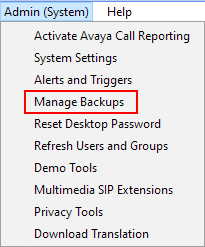
- Open Chronicall/ACR and navigate to the Admin (System) > Manage Backups menu
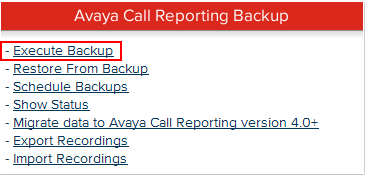
- Select "Execute Backup"
- Choose either "Backup All Data" or "Selective Backup"
NOTE: If you aren't sure which option to pick, we recommend you backup all data.
- Backup all Data
- Select the "Run Backup" button
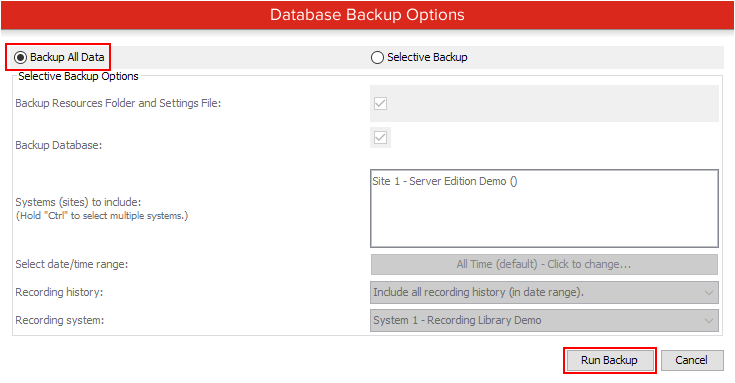
- Click OK from the next menu and Chronicall/ACR will create a zip file containing all of your database information and settings

- Depending on your browser settings it may ask you where you want to download the zip file or it may just be deposited in your local Downloads folder
- Select the "Run Backup" button
- Selective Backup
- Under this selection, you can choose what files to include in the backup and a timeframe if you want to do a limited backup

- For a limited backup simply select your system from the "Systems (sites) to include" section
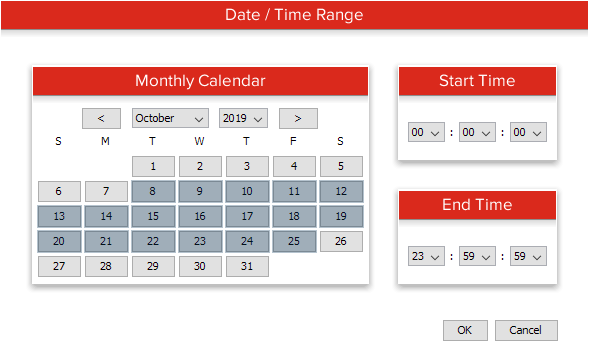
- Next, using the menu from the "Select date/time range" you can choose your range of dates to include database information from
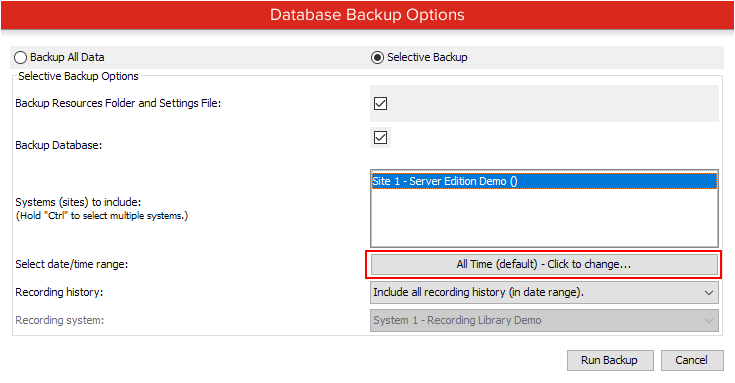
- Using the calendar on the left, and the Start time/End time menus on the right, you can narrow down your selection of times to cover and then click OK
- Select the "Run Backup" button
- Click OK from the next menu and Chronicall/ACR will start create a zip file containing all of your database information and settings

- Depending on your browser settings it may ask you where you want to download the zip file or it may just be deposited in your local Downloads folder
- Under this selection, you can choose what files to include in the backup and a timeframe if you want to do a limited backup
- Backup all Data