I need to install the Chronicall Apps for an agent's desktop using the new installer.
Steps
- Go to the https://www.ximasoftware.com/downloads page to find the installation files for your Serial key, and download using the Apps button
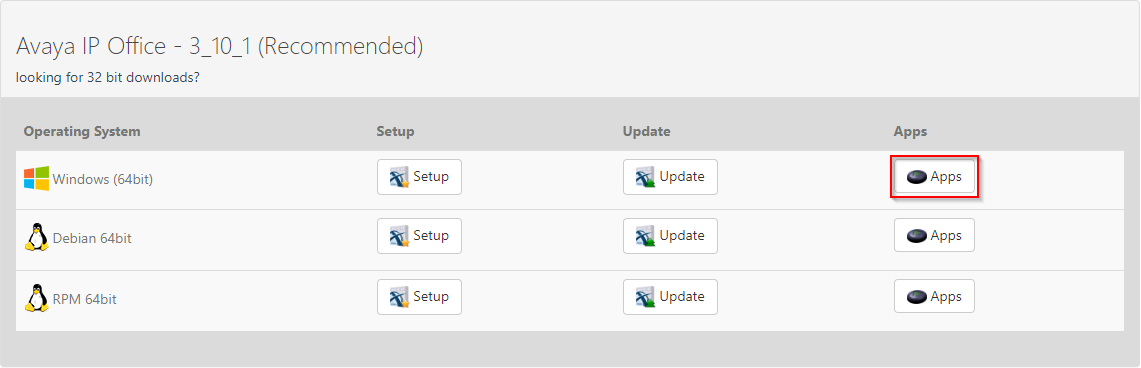
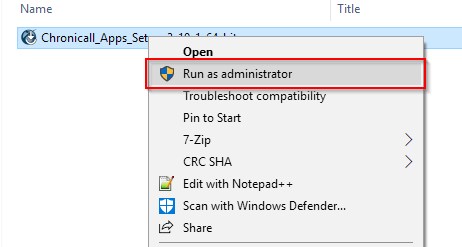
- If the user that you downloaded this onto has Admin rights, run the executable as Administrator. If not, do not run as Administrator.
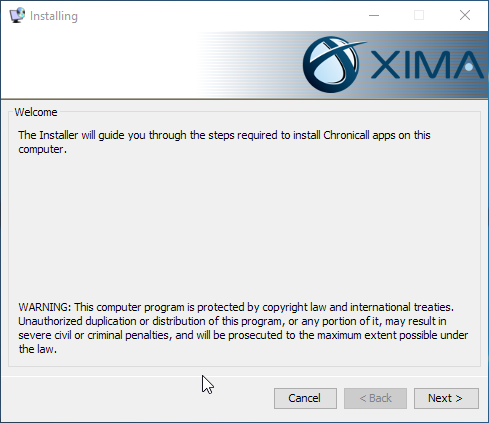
- The installer will launch and will give you this popup:
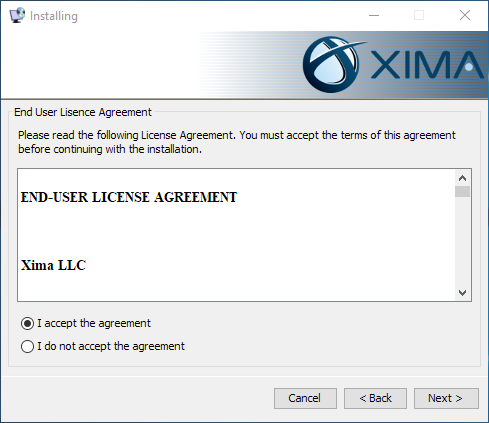
- After selecting Next>, the following screen will appear and you will need to accept the license agreement:
- Once the License Agreement has been accepted the next page will give you options as to what will be installed. Most agents will only require Chronicall Desktop and Agent Dashboard.
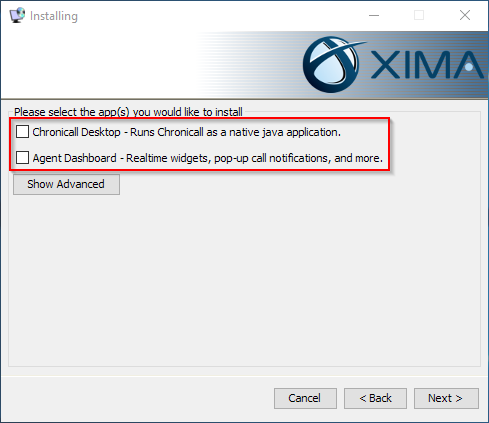
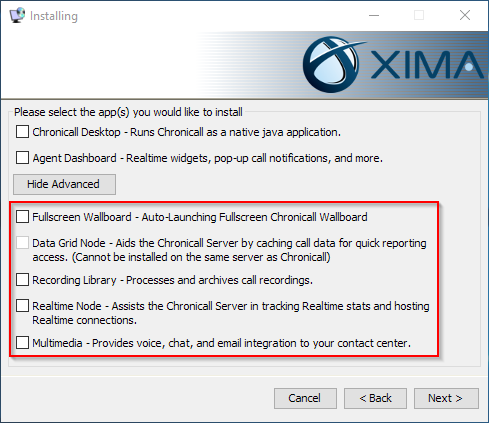
- Under the Show Advanced button, you will find other options as well. All of these are applicable to Servers, NOT client computers.
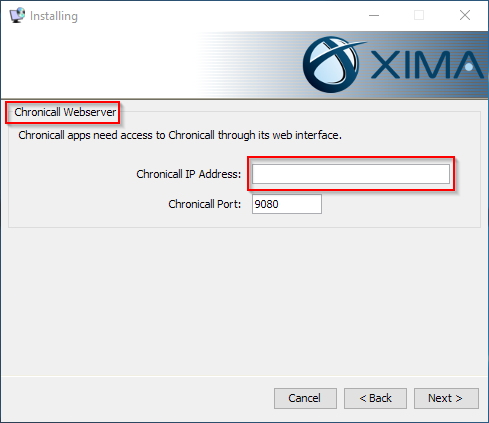
- Next, it will ask you to input the IP Address for the Chronicall Server. This is the server where Chronicall is installed, NOT the IP Address of the Client.
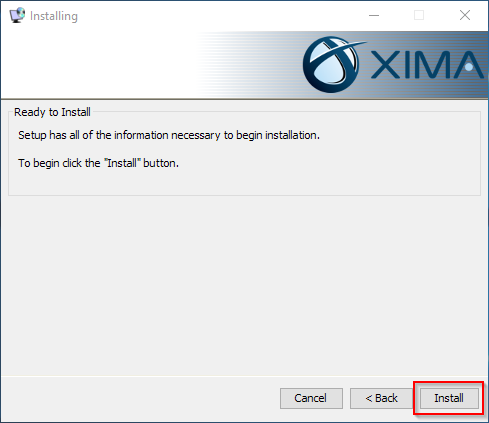
- The last page is the final chance you have to go back and make any changes before installation. If everything looks good, click the Install button.
- If you followed this guide, after the installation is complete, you will have new Desktop Icons for both Chronicall Desktop and Dashboard. You are now good to go!